
Columns, tables and background images in the editor
Job descriptions and thank-you pages no longer have to be one long column of text. The editor toolbar has three new layout tools, and each one shows a strip of options above the block when you click into it.
Where: The editor in job descriptions, follow-up questions, question help text, thank-you pages, and the careers page header and footer
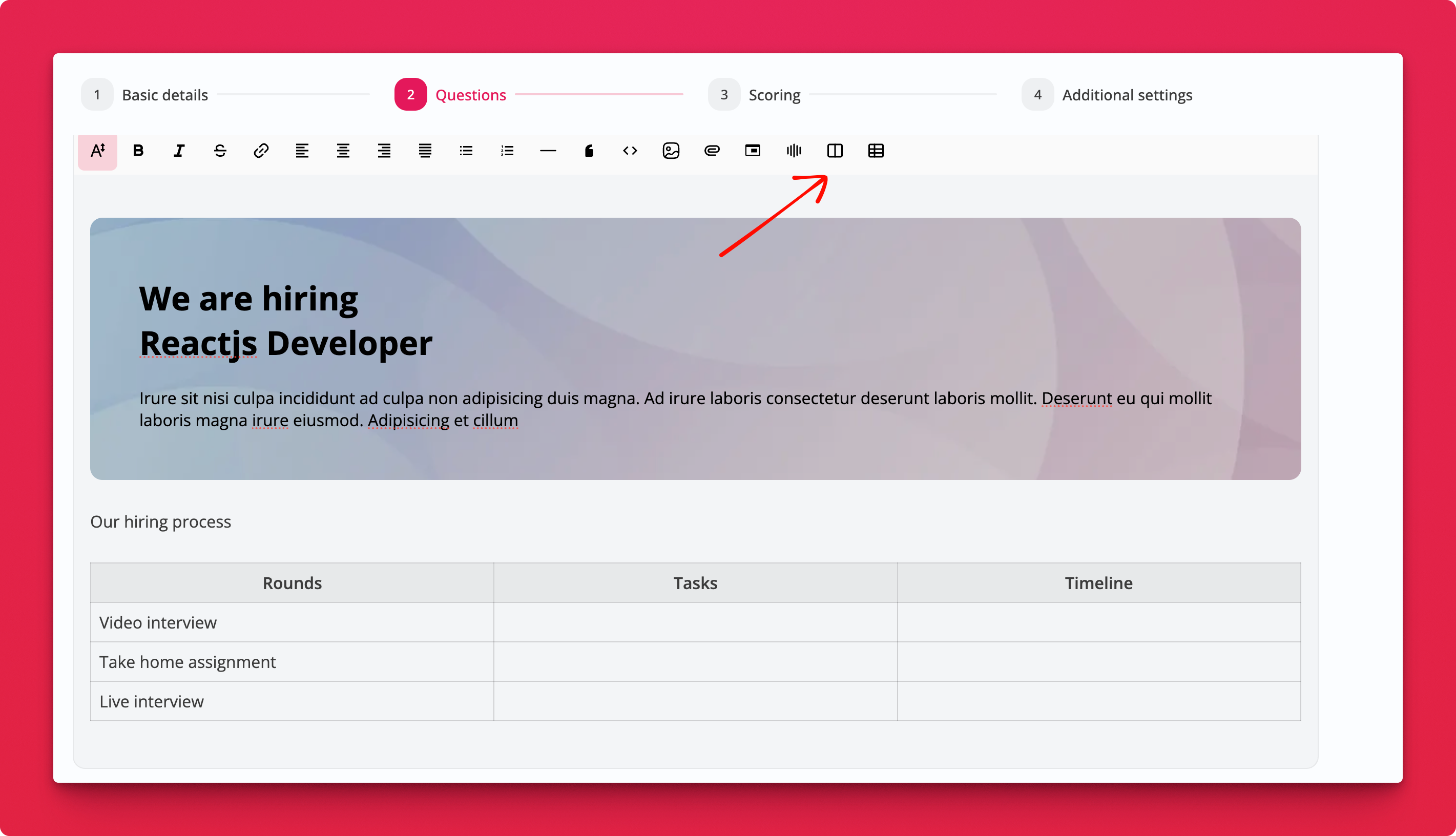
Columns
Click the columns icon to insert two side-by-side columns. From the strip, switch between 2 and 3 columns and pick what happens on phones: stack them, wrap them, or scroll sideways.
Tables
Click the table icon for a 3×3 table with a header row. Add or delete rows and columns, toggle the header row, or delete the table from the strip. Drag a column border to resize it.
Background blocks
Click the background block icon, pick an image, and type over it. The strip sets the height, padding and overlay darkness, switches between light and dark text, aligns the text horizontally and vertically, and swaps or removes the image.
Notes
- Candidates see the same layout on the job page, on desktop and on phones
- Wide tables scroll sideways on phones instead of breaking the page
- The candidate's text answer editor does not get the layout tools