
Save candidate files to Google Drive automatically
Connect Google Drive once and every candidate's videos, files, and report land in your own Drive, organised by job and candidate.
- Connect your Google account under My account → Integrations → Partners.
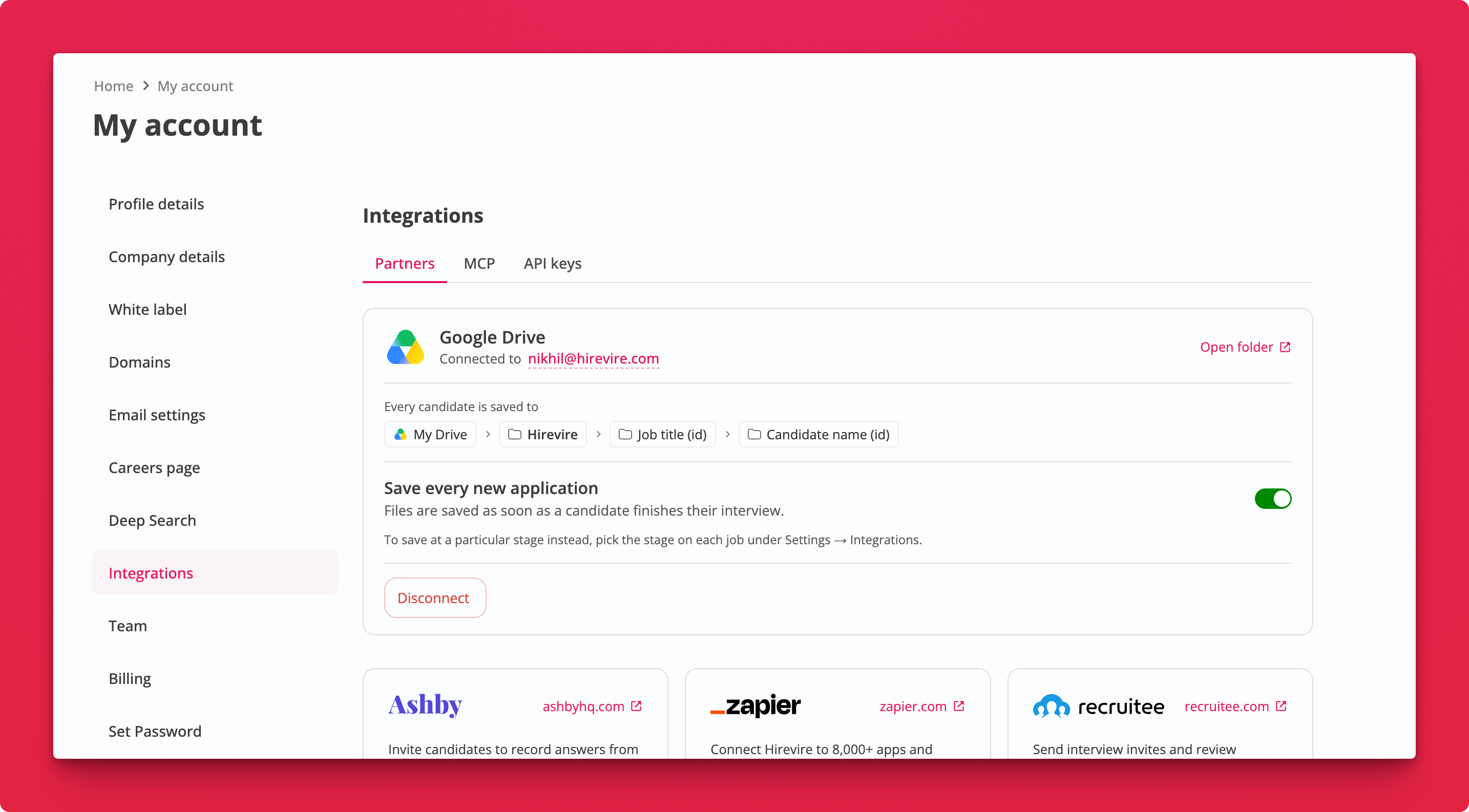 2. Files save automatically. Every candidate goes to
 My Drive → Hirevire → Job title (id) → Candidate name (id) as soon as they finish their interview.
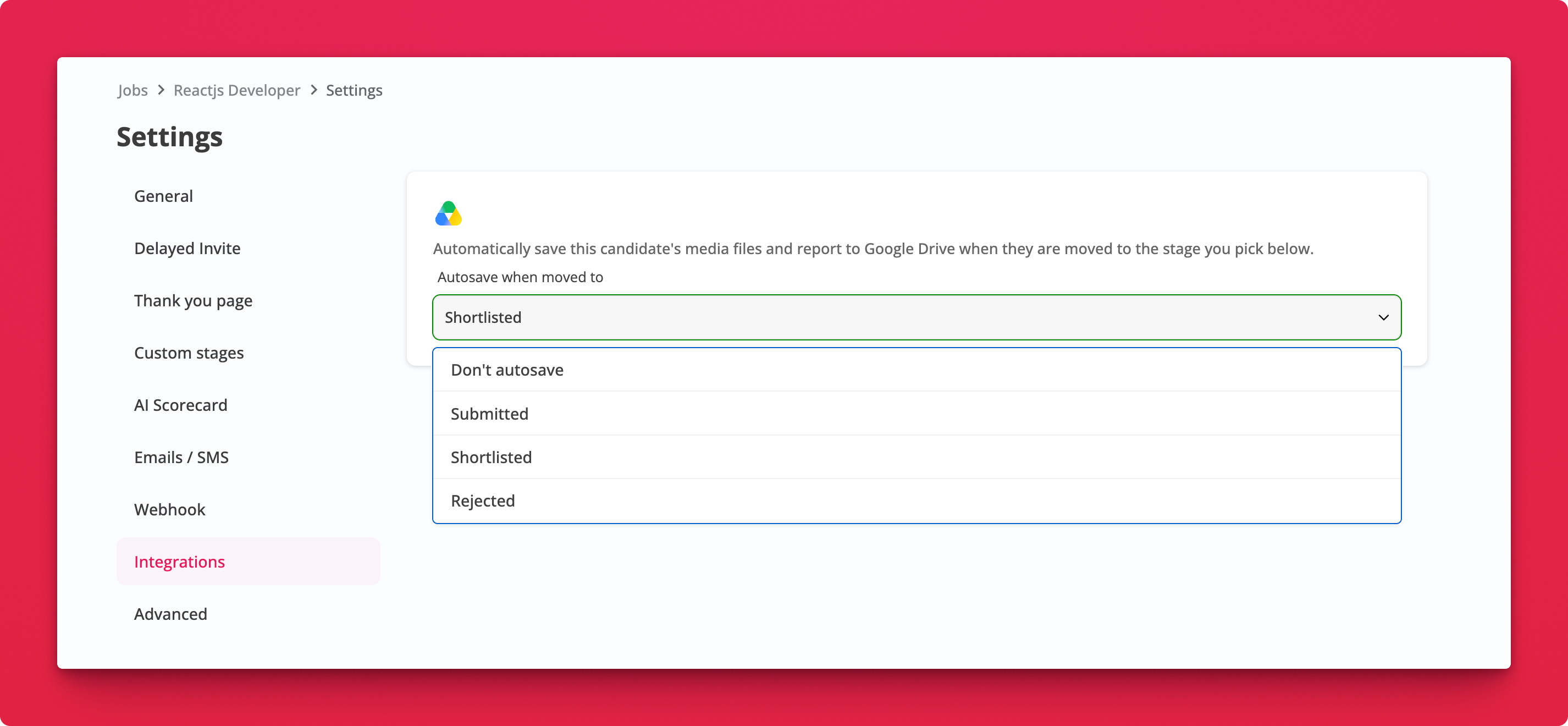
3. Pick a stage instead, per job. Open Job Settings → Integrations and set Autosave when moved to. Choose Submitted, Shortlisted, Rejected, one of your custom stages, or Don't autosave.
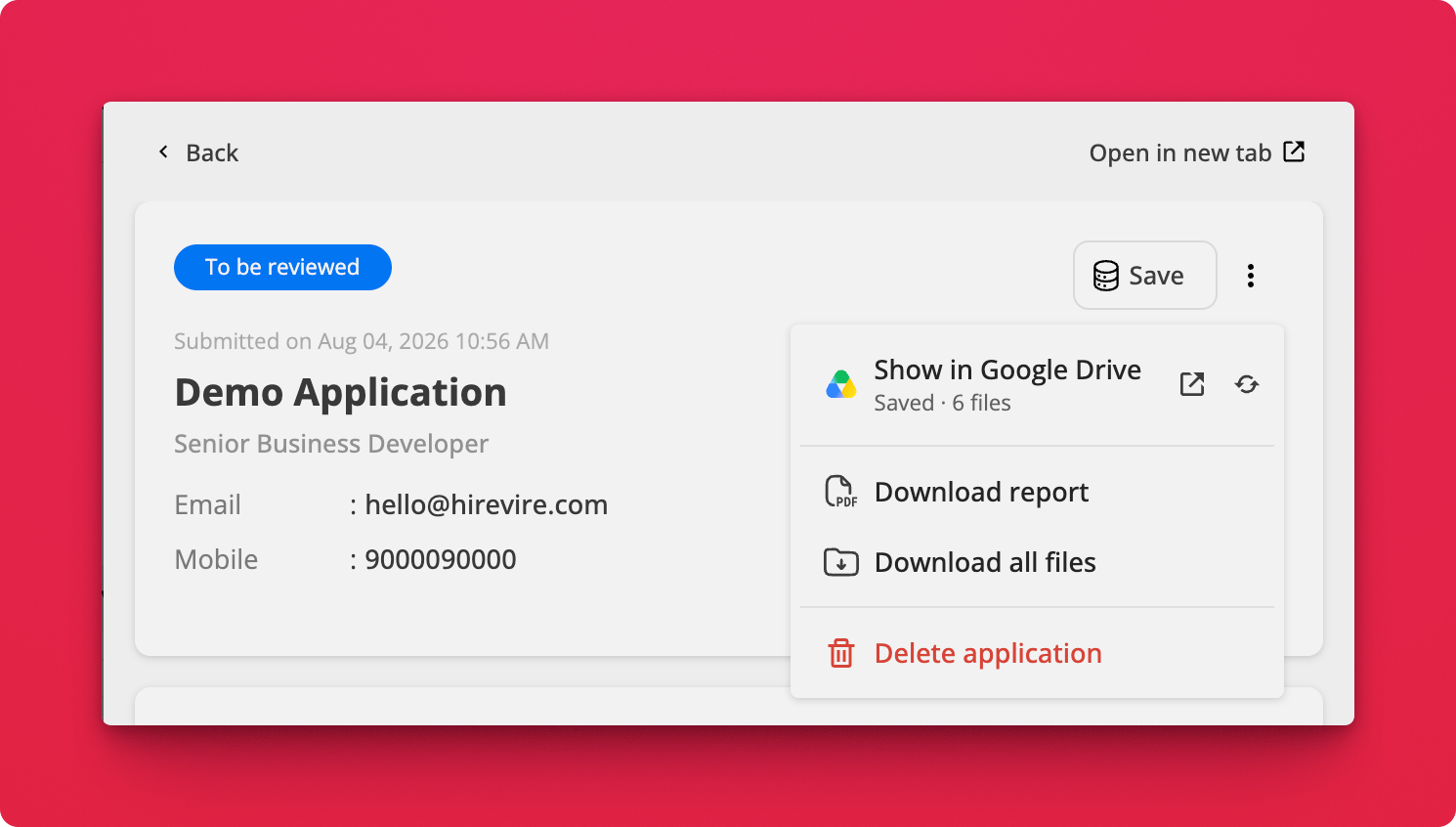
 4. Save any candidate on demand. Click Save on the application details page. Once saved, the menu shows a link straight to that candidate's Drive folder and how many files are in it.
Why this matters
- Your files, your Drive. Everything stays accessible even outside Hirevire.
- Predictable structure. Job and candidate IDs are in the folder names, so nothing collides.
- Share without downloading. Send a hiring manager a Drive folder link instead of a zip.
- Stage-based control. Only archive the candidates who actually make it past screening.
Notes
- The per-job setting overrides the account-level default.
- Use the refresh icon next to Show in Google Drive to re-sync a candidate's files after an update.