Text (single line)
Where did you hear about this role?

Do not watch a two-minute video to learn someone cannot work weekends when a dropdown would have told you. Standard response questions collect typed answers before the first media question.
Start Free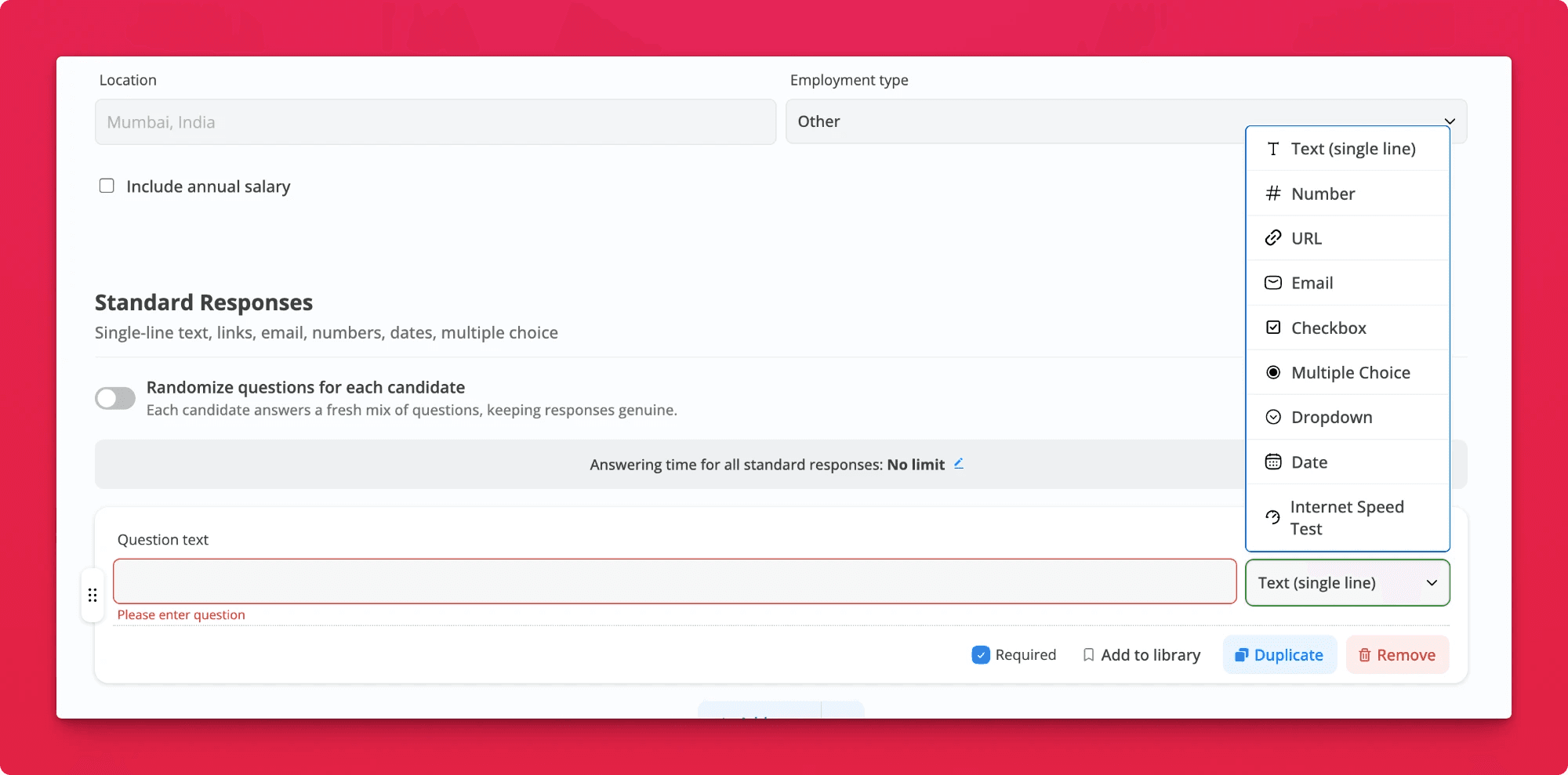
Each standard question gets its own response type, so the answer comes back as a number, a date, or a choice you can filter on, not a sentence you have to read.
Where did you hear about this role?
Years of experience, or expected monthly salary.
A portfolio, GitHub, or LinkedIn profile link.
A validated address, so the invite does not bounce.
Tick every language you can take a support call in.
Pick one: morning, evening, or overnight shift.
One option from a long list, such as state or licence class.
Earliest start date, or the day a visa expires.
Candidates run a speed check. Handy for remote call-centre roles.
Mark a standard question as a must-have, such as a forklift licence or a start date before 1 November. Applicants who miss it are stopped before the first media question and never reach your review queue.
A dropdown answer is a value, not a paragraph. Export every answer in the job to CSV, or push each field to your ATS through webhooks and Zapier without anyone retyping a salary figure.
Candidates answer all standard questions together as one group. Set a section-wide answering time or leave it open, and they move on to the video questions once the group is submitted.
Open the Questions step of your job and click Add questions under Standard Responses, or pull one in from your library, an import, or AI
Type the question, pick a response type, and tick Required. For checkbox, multiple choice, and dropdown questions, add the options candidates choose from
Turn on scoring for standard responses to mark must-haves and auto-disqualify, then set one answering time for the section and save
Common questions about typed answers in a Hirevire prescreen and what candidates and reviewers see.

























Isaac C.
I appreciate that Hirevire saved me time in scheduling calls or initial videos that I didn't have the time for. It allowed me to see people's mannerisms and the way they think. I like that it saved me time, and the initial setup was easy.

Vishva T.
I have used Hirevire for taking video interviews of candidates, and it helps me evaluate candidates before meeting them, saving my time. I like its ability to ask questions to the candidates without any manual effort, as I can pre-feed the questions I want to ask, and it asks them in a video interview. The initial setup of Hirevire was easy, which is a plus.

Roy Lammers
CEO, Remote Talents
It's saves a lot of time. otherwise we would need to interview people manually. The software always works, it's really easy for our candidates to use and their support is really 10/10. If you need an integration or anything, they are there for you. The implementaion was also really easy and hirevire helped us connect it to the right ATS system. We use it daily.

Jean F. Queralt
Founder & CEO of The IO Foundation
We've taken some time to write this review because we were not using it intensely until now. We liked the team behind the platform so we did bet on them... and it is paying off tenfold. For one thing, the team is extremely responsive. We haven't had one single inquiry that wasn't replied in few hours if not immediately. You wonder when do they actually sit to code and maintain. And you know they are hard at work with those 2 because they keep releasing features, improving the platform and listening to their customers. All in all, we are very satisfied and we can only recommend supporting this team and Hirevire as a platform.

Sergio Arias Merino
Before using Hirevire, we were already conducting interviews by asking candidates to send video responses via WhatsApp. This process required having the phone with us at all times, and it often led to disorganization—videos would get lost or were hard to find later. Now, with Hirevire, the entire process is much smoother and more organized. All responses are centralized on the platform, and the interface is incredibly easy and intuitive to use. One feature we absolutely love is that candidates have the option to retake their video recordings. This not only gives them more comfort but also results in higher-quality responses. Before, creating a video with all the questions was a tedious process that required some technical know-how. Now, thanks to Hirevire, no technical skills are needed, saving us a lot of time. What sets Hirevire apart from other SaaS platforms I’ve tried is the versatility in response formats. Being able to set up questions that can be answered with video, text, audio, an image, a file, multiple-choice options, or even a single-choice test style is fantastic. Lastly, I want to highlight the custom domain feature, which is an excellent detail. The implementation is straightforward, and the result looks highly professional. I’m truly impressed with Hirevire!

Riah Gonzalez
Founder & CEO - Linq Consulting Solutions
I am a Virtual Assistant Matchmaker, helping small businesses find an amazing Virtual Assistant in the Philippines through a rigorous and thorough process. The biggest challenge has always been the man power hours to interview as many candidates as I've liked. We just wrapped our first full recruitment using Hirevire and it was a game changer. Here's what I learned: - 1st and foremost, the Hirevire support team is bar none. As we play around with our unique case, there are bound to be some hiccups. We weren't seeing the numbers we hoped for and so I reached out for ideas. BAM. Rapid response with feedback and ideas to try. - They are listening to our feedback and rapidly adjusting to the feature requests. In the month that I've had Hirevire, I have already seen a huge increase in the value of it's usefulness as they build out more and more. - I am thrilled about the great possibilities of how we can use it move forward. I was sent a consumer survey from the company and although I shouldn't have been, they used HIREVIRE. Genius. Hands down, I'll be using this for client testimonials moving forward too. - Don't give up if you have to rework somethings. Due to the market we are in, we had to improvise a bit. Instead of requiring everyone to exclusively use Hirevire, we opened up the option of 1:1 zoom interview or Hirevire - and made a disclaimer that those using the platform would be given priority review. Instant uptick in applications! I CANNOT WAIT to see how Hirevire continues to mature and am confident that this is the key to simplifying our workflow that I have been looking for.

kevin69
Good deal. Works well. Updates are pushed very fast upon suggesting to the team. Great job!

AreaScouts
I was spending hours with interviews, and hiring others at a huge expense! Now I am able to automate it all! Amazing!

Reg_Sam
I'm genuinely pleased with this recruitment tool. What I appreciate most is the convenience of conducting video interviews that can be scheduled according to my own timetable. This flexibility is particularly useful when I have a busy schedule. The feature that allows candidates to record their answers to pre-set questions ensures that I can thoughtfully analyze each performance and accurately assess the skills and potential of each candidate. This is a tremendous help in selecting the best talents without the need to organize multiple live sessions. Hirevire is also very user-friendly, which significantly lowers the entry barrier for new users. Both my candidates and I adapted quickly to this system, making the entire recruitment process run smoothly and without unnecessary complications.

NSG17670
As a vital tool in our recruitment arsenal, Hirevire has revolutionized our interview process, optimizing efficiency, and saving valuable resources. With its intuitive features tailored for interviewing purposes, HireVire has become an indispensable asset for our HR department. One of the most significant advantages of HireVire is its ability to map out un-manned hours typically spent on conducting interviews. By automating and streamlining this aspect of the recruitment process, we've significantly reduced the time and effort traditionally required for scheduling and coordinating interviews. This not only frees up manpower hours but also minimizes the associated costs of compensating designated staff for interview duties. Furthermore, HireVire facilitates adherence to essential protocols throughout the recruitment lifecycle. Its comprehensive features ensure that each stage of the process is executed seamlessly, from initial candidate screening to final selection. This ensures consistency and compliance with organizational standards, enhancing the overall quality of our recruitment efforts. One of the standout features of HireVire is its flexibility in recording and storing interview sessions. This allows us to revisit and review interviews at a later time, facilitating quality checks and enabling continuous improvement in our interviewing techniques. The ability to access these recordings remotely adds an extra layer of convenience, particularly in today's remote work environment. Overall, HireVire has exceeded our expectations in terms of functionality, efficiency, and cost-effectiveness. It has empowered our HR team to focus on higher-value tasks while streamlining our recruitment processes. We highly recommend HireVire to any organization seeking to optimize their interviewing procedures and elevate their recruitment efforts.

Becky Auer
Business Owner
I set up a fake job posting and have to say it was SUPER EASY and INTUITIVE to use. The email notifications as a user and creator were great. I am super happy with this purchase. And highly recommend it for those looking to see candidates BEFORE you bring them in for an interview!

President365
This application is essential for recruiting remote workers or anyone else, for that matter. It streamlines the hiring process, reducing stress by enabling me to prescreen candidates effectively through video, audio, text, and file requests. HireWire has become my new go-to tool for hiring.

DigitalGrowthHacksClub
I was finally able to get my hirevire set up. I must admit getting all of my 10 codes loaded was the biggest challenge I had. Everything else was pretty cut and dry. I opted for the highest tier as this has become a major piece of my business. There is always a risk to full stacking software from Life Time Deals but this was a risk I was willing to take. This tool does exactly what it says it does. It is a must have tool for internal hiring but trying to use it for a full business I think you have have to add more around it but could be used as a screener to higher end jobs. I highly recommend this tool to anyone looking to screen applicants in volume as we know they tend to waste our time. I tried it out as an embed and as a stand-alone page and it is clean. I hope they stay around because this tool is very good.

Mischa
Just started using Hirevire and it's already making the hiring process way easier. I love how user-friendly it is – didn't have any trouble getting the hang of it. It's a big help with managing lots of applicants, especially with the video and text responses. Setting it up was straightforward, and I'm finding it really useful for getting a better sense of candidates early on. Plus, it's pretty budget-friendly. If you're looking to streamline your recruitment, Hirevire seems like a good bet so far.

Vipin-Chauhan
Hirevire is indispensable for any company aiming to streamline their hiring procedures. Its user-friendly interface and array of features transform it into a productivity-enhancing tool. Simplifying the preliminary screening of candidates, Hirevire facilitates the collection of responses through various mediums such as video, audio, text, and file uploads. This versatility makes it an exceptionally practical tool. Moreover, Hirevire enables the early identification of suitable talent, empowering organizations to make well-informed hiring choices.

Kyle David
CEO - KDG
Hirevire is a great tool for video interviewing and pre-screening candidates. It is easy to use and set up, and it provides a great way to get to know candidates better before bringing them in for an in-person interview. Here are some of the things I like most about Hirevire: * It is easy to create and send out interview invitations. * Candidates can record their interviews at their convenience. * The platform allows you to ask a variety of question types, including multiple choice, open ended, and behavioral. * You can rate and review candidate interviews, and collaborate with other team members. * Hirevire integrates with a variety of other HR tools, making it easy to incorporate it into your existing workflow. Overall, I highly recommend Hirevire for any company that is looking to improve their hiring process. It is a great way to save time and money, and to make better hiring decisions. Here are some additional benefits of using Hirevire: * It can help you to identify top talent early in the hiring process. * It can help you to reduce scheduling conflicts and no-shows. * It can help you to make more informed hiring decisions. * It can help you to improve your candidate experience. If you are looking for a way to improve your hiring process, I encourage you to give Hirevire a try. I think you will be happy with the results. In addition to the benefits listed above, Hirevire is also a very affordable solution. There are a variety of pricing plans to choose from, so you can find one that fits your budget. I highly recommend Hirevire to any company that is looking for a better way to hire top talent.

Flávio Pavanelli
CEO Moinhos Vieira
Hirevire has truly revolutionized our hiring process. Being able to see and hear candidates through videos and audios before even scheduling an interview has made our selection process more efficient and effective. Highly recommend!

Mohammad.awais
Hirevire is a game-changer in streamlining the hiring process. Its automated screening software saves lots of time and provides a good view of candidates. Given the current market there are many looking for positions and you want to get the best without interviewing all of them, hence this is a good screening process prior to selected any canditates. It’s user-friendly, efficient, and perfect for high-volume hiring or short-staffed HR teams. Hirevire is the go-to tool for a more effective hiring process. Highly recommended!

Sawyer Lane
Program Manager, Maker's Fellowship
I ran an experiment with asynchronous video applications for one of my recent job postings. I have to say, I LOVE it. 1. To start, it allows you to screen through "lazy" applicants as it is an extra step in the application process. This allowed me to only see applicants with really high intent + a willingness to take action. 2. I didn't have to waste time and mess around with scheduling initial Zoom calls for every applicant. I structured my questions in a way that allowed me to immediately get a sense of an applicants level of knowledge. This allowed me to screen applicants faster and more efficiently. I scheduled individual calls with my shortlisted applicants, and made the final decision to hire one of them within the week. I'd say the experiment with Hirevire was a success and I'll be using it whenever I need to make a new hire. TLDR: the amount of time I saved with Hirevire was well worth the purchase price.

Olushola
I recently started exploring Hirevire and I like the way it simplifies the process of presecreening candidates before scheduling a traditional interview. The capacity to collect responses in various formats ranging from video to audio, text and even file uploads makes it a very practical and versatile tool. More importantly, the readiness to listen to customers is a good sign. I reached out to Sanat and he took the time to address all my concerns. As with every new tool, there is room for improvement but the tool is already very useful as it is. You definitely want to take advantage of this offer if recruitment is a significant part of your work.

Rob Hampton
Founder, Coda Music Technologies
Before Hirevire, I was cobbling together a makeshift solution using Typeform and Loom videos. While it worked, it was time-consuming and lacked the finesse I desired. Hirevire has made this process so much easier. Now, I achieve superior results in half the time. It's not just a hiring tool, it's a time-saving, productivity-boosting powerhouse. Hirevire has truly transformed the way I recruit, making it a seamless and efficient process to pre-screen candidates for culture and skill fit before I ever schedule a call with them.

analytiqum
As a small company, we need a simple application to recruit for customer-facing jobs or for remote-based teams, and video-based recruiting is useful to understand if the candidates are a good fit. The application is simple, and easy to use and Sanat is really good at explaining all features and possible ways to use it. Keep up the good work!

highlyfavorededna
I have been searching for something like this for a while. This will help my clients navigate through the sea of applicants for important positions and help streamline the process of selecting the BEST and RIGHT candidate for the job. I love how simply functional it is and yet very comprehensive in approach. This will be used by us and many of my clients for years to come! Thank you

nowmeetdre
Recently, I had the privilege to try out hirevire and my expectations were surpassed. This inventive platform provides a simple and effective way to interview with video, revolutionizing recruiting. Hirewire is an ingenius idea that stands out from the traditional job interviewing process. It simplifies recruitment by enabling employers to assess candidates through video interviews, saving time and effort while maximising efficiency. In my opinion, Hirewire has the potential to revolutionize interviews and how companies make hiring decisions. It provides an efficient and innovative solution that streamlines the recruitment process while still enabling businesses to access the best quality candidates. NB: looking forward to having this feature "Questions with multiple choice options"

Skez
I’ve been impressed with your product features compared to other job interview platforms out there. The ability to create a job posting page (with a customer video) is impressive. I also like how flexible your platform is because I will probably use this product in a different way than job interviews. The UX is also very intuitive as well. I’m looking forward to further testing my use cases, as I feel like this product is close to having most of what I need in this type of platform.

RightWinMedias
I recently had the opportunity to try out Hirevire, and I must say it exceeded my expectations. This innovative platform provides an easy and efficient way to conduct interviews using video, revolutionizing the hiring process. The concept of hirevire is simple yet powerful. Instead of traditional interviews, hirewire allows employers to connect with potential candidates through video interviews. This approach offers numerous advantages, saving both time and effort for all parties involved. The user interface of hirewire is intuitive and user-friendly, making it easy for employers to navigate through the platform. Scheduling interviews, reviewing candidate profiles, and conducting video interviews are seamless processes. The platform also provides advanced features such as video recording and playback, which are invaluable for evaluating candidates and making informed hiring decisions. What truly sets hirevire apart is its ability to create a dynamic and engaging interview experience. Candidates can showcase their skills, personality, and professionalism through video responses, giving employers a comprehensive understanding of their potential. This innovative approach eliminates the limitations of traditional resumes and allows employers to truly assess a candidate's suitability for a role. As a user, I appreciated the convenience and flexibility of hirevire. It eliminated the need for lengthy scheduling processes and enabled me to review candidates at my convenience. The platform's integration with other hiring tools and applicant tracking systems further streamlines the hiring workflow. I believe hirewire has the potential to transform the way organizations conduct interviews and make hiring decisions. It provides an innovative and efficient solution that simplifies the hiring process while ensuring that employers have access to top-quality talent. I highly recommend hirewire to employers and HR professionals looking to streamline their hiring process and find the best-fit candidates. With its user-friendly interface, innovative video interview capabilities, and time-saving features, hirewire is poised to become the go-to platform for modern and effective hiring practices. Kudos to the hirevire team for developing such a game-changing product. I look forward to seeing more innovative solutions from hirewire in the future!

Ruhrpott
The software is very intuitive and you get good results quickly. I think the idea for a video for applications is brilliant. You quickly get an impression of whether the applicant is interesting for the company and whether a personal interview is worthwhile. I would wish that the German language would soon be supported or that you could change the texts yourself in the editor. The funnel is in German, but the instructions are still in English. The software definitely has potential.

Curran Van Waarde
Founder of CallScaler.com & Wordplay.ai
Solid, simple tool. Needed something easy and simple to collect video interviews from applicants. Just tested it and everything worked properly. Excited to use this tool for my next hire!

Alex Bainov
Contrast Law
As someone who has gone through hiring several times, this is a great platform to make your hiring process easier, more efficient/effective. Collecting video recordings from job applicants is incredibly useful in allowing me to quickly get a sense of a candidate's communication skills, presentation abilities, and overall demeanor. It's much easier to gauge someone's suitability for a role when you can actually see and hear them in action. Once you receive the submission, you can easily marked as rejected or shortlisted. Things I like - you can upload an intro video (instead of of text), so your candidate gets a sense of you as well - you can add instructions for the process before the candidate starts - you can select different types of questions as part of the same interview submission (and not just video response). - ability to create customized questions, which allows you to ask specific questions that are relevant to the specific role -allows a person to upload a video response instead of recording on the fly Although this is meant for job applications, you can certainly gather responses for projects/purposes. Overall, a great platform for anyone involved in the hiring process.

lionstail
I love having the ability to have job candidates submit videos as part of the application process. The videos give me the ability to get a sense for the candidate's personality, their spoken English, and much more without having to schedule an interview and take time out of my calendar. The other video application apps I've seen on AppSumo had all these bells and whistles that I didn't want or need, like AI to tell me who was the best candidate and deep fake videos that were supposed to represent me better than I could represent myself. The advanced features drove up the price, and I didn't want to be paying for features I didn't like and had no intention of using. HireVire is a much simpler app than the others with a much lower price tag. It allows me to get the video applications I want, without paying for AI or Deep Fakes I don't want.

Hamza84646
Hirevire is an excellent website for recruitment. It is extremely user-friendly and simple to navigate, making it easy to use and understand. The website provides a great platform for employers to find and hire the right candidate for their business. Additionally, the website has a great customer support team to provide any help or guidance needed.

Kyle David
President and CEO, KDG
We demo a LOT of software and Hirevire is one of my favorites for it's stupid-simple interface and ease of use both for the company and the applicant. We spent a few hours this morning looking at how to weave this into our recruiting process and with every question, Hirevire fit the bill. The webhooks are simple enough that it makes for really easy integration with our existing ATS just using Zapier. Paramount to the whole thing is the fact that the interview experience is seamless for the candidates. All around one of the best things we've bought on AppSumo in years!

Nathan Ackerman
Partner, Global Risk Advisory Services, Riley Risk Inc.
If your job or role includes hosting interviews, you should jump on this platform now. While it's a newer approach, having the ability to provide candidates to submit a remote camera interview appointment on THEIR schedule is a huge time saver, and allows the ability to save, review and share for future purposes. I've found the team to be very responsive, and am very happy with the future planned progress for this platform.

Margi Williams
IO Psychology Practitioner (Social Scientist, Researcher, Trainer, & Career Developer)
As a career coach and recruiter, I support candidates in all stages of career transition. Adding Hirevire to my toolkit has positioned me to process more candidates while decreasing the time invested in the recruitment lifecycle. Additionally, the technology allows me to work with career coaching clients who require feedback when preparing for interviews. This tool is a must have for career professionals and hiring managers!

Dr.EsFih
I have been paying particular attention to automated video interview apps for HR/Hiring and this is probably the most generous and pro-active option I have found. The admin interface is simple and straight forward and the candidates interviews are conveniently cut-out by sections/questions to ease the scoring of each candidate. Sana and team are very responsive and have a great roadmap ahead. Full Stack Tacos for this one!
Start your 7-day free trial today. No credit card required.