
Using AI Scorecards to Evaluate Candidates
AI Scorecards automatically evaluate candidate responses against your custom rubrics, providing weighted numerical scores and detailed feedback. This helps you quickly identify top candidates and make data-driven hiring decisions.
Before you begin: You'll need a job created with video or audio questions. AI features are unlimited on all paid plans.
What AI Scorecards Evaluate
When you configure a scorecard, the AI analyzes candidate video and audio responses based on factors you define—like communication skills, technical knowledge, or cultural fit. Each factor gets:
Individual score (1-5 scale) based on your custom rubric
Weighted contribution to the overall score
Specific feedback with reasons and question citations
Scorecards generate automatically when a candidate submits their application (if you've configured one for that job).
Setting Up Your Scorecard
Access Scorecard Settings
Go to your job's Settings page
Click the Scorecard tab
Choose how to create your scorecard:
Use a template — Select from pre-built rubrics
Upload a rubric — AI parses your text document into factors
Build from scratch — Add factors manually
Add Evaluation Factors
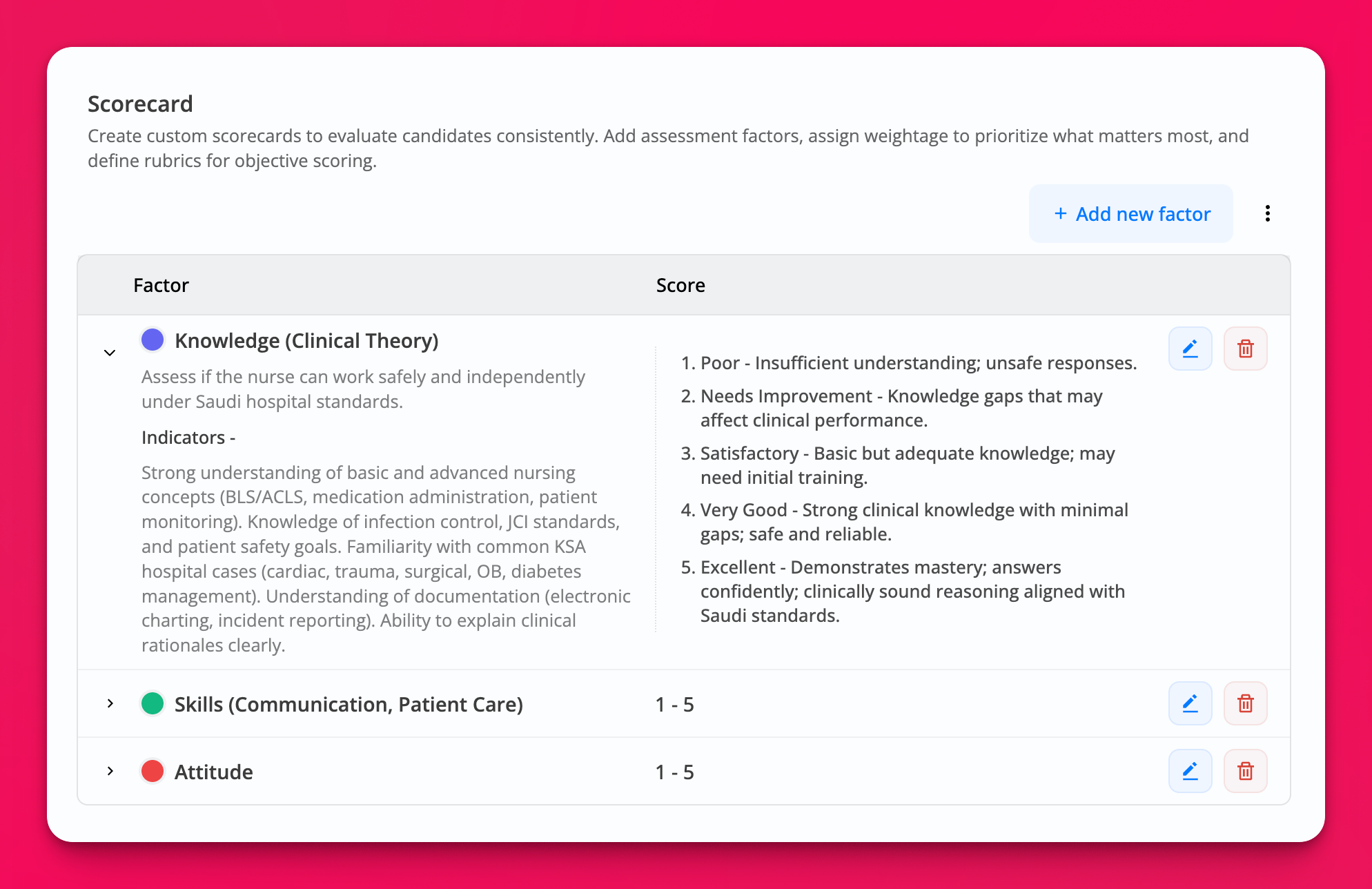
Click Add new factor to create custom evaluation criteria. For each factor, define:
Name — e.g., "Knowledge (Clinical Theory)" or "Communication Skills"
Description — What this factor measures
Indicators — Specific behaviors or qualities to look for
Rubric — 5-level scoring guide (Poor to Excellent) with criteria for each level
Weight — Percentage contribution to final score (all factors must total 100%)
Color — Visual identifier for this factor
Associate Factors with Questions
After creating factors, link them to specific questions in your application. The AI will evaluate each question based only on its associated factors.
In the "Associate Factors with Questions" table, check the boxes under each factor column for the questions you want evaluated. For example, you might associate technical questions with "Knowledge" factors and behavioral questions with "Skills" or "Attitude" factors.
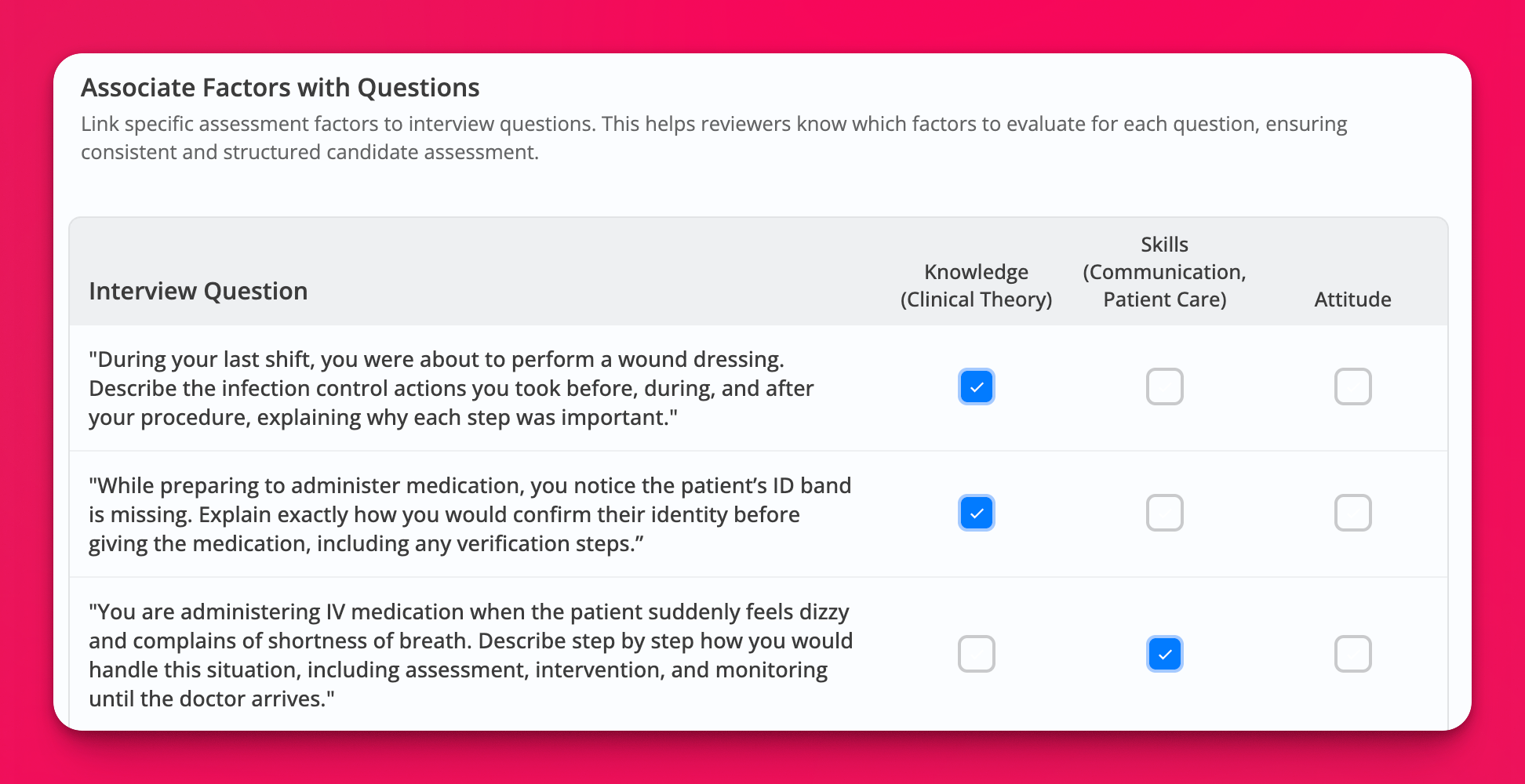
You can associate multiple factors with a single question, and the same factor can evaluate multiple questions.
Adjust Weights
Use the weight sliders to set how much each factor contributes to the final score. Higher weights make that factor more important in the overall evaluation. Weights must total 100%.
Save Your Configuration
Click Save to activate the scorecard. From this point forward, new candidate submissions will automatically generate AI scores.
Changes to your scorecard configuration only apply to new applications. Existing candidate scores won't recalculate automatically.
Viewing Candidate Scores
Open any candidate's application detail page to see their AI Score. The score appears in an expandable banner with a sparkles icon.
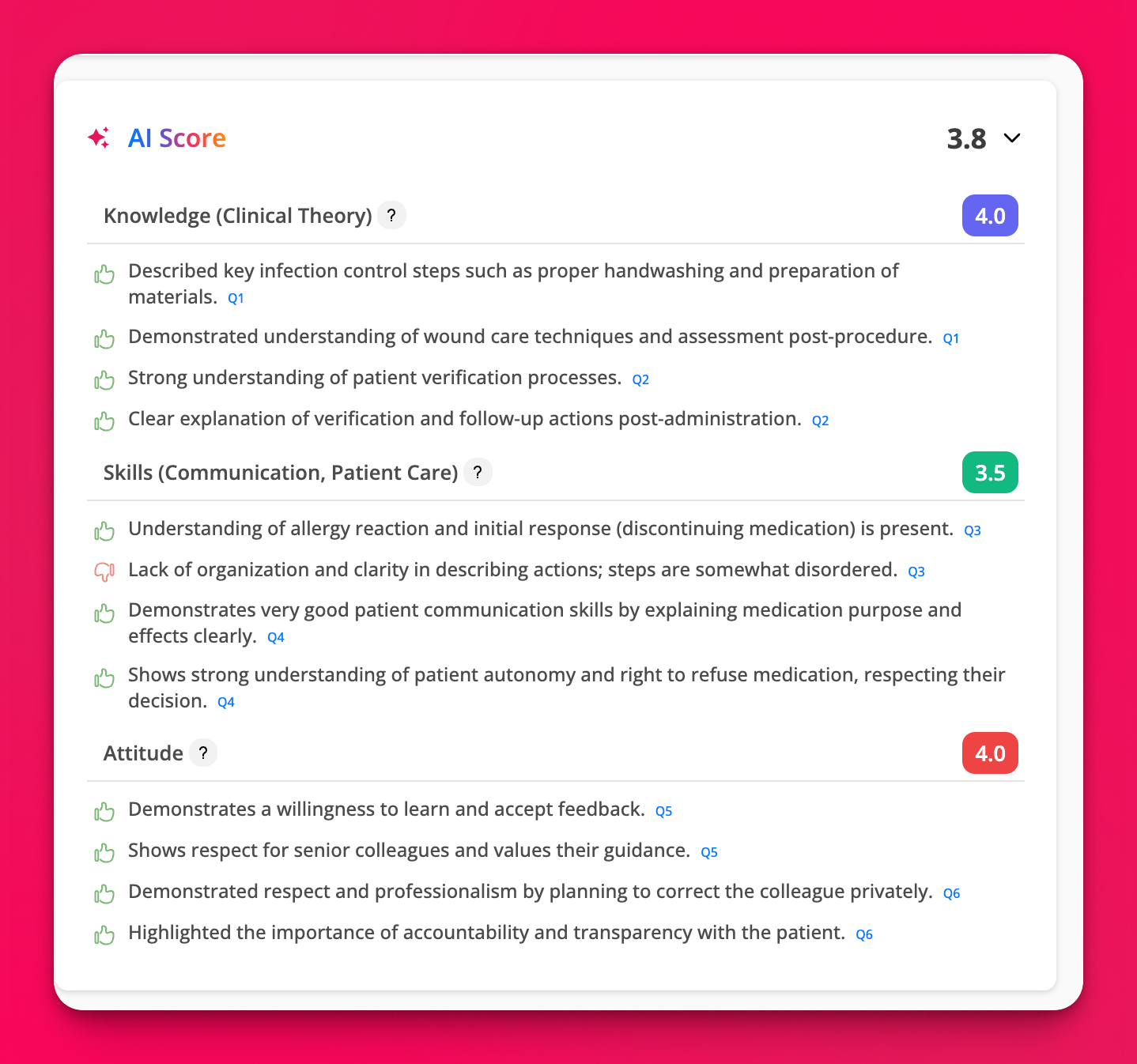
Each scorecard shows:
Overall weighted score — Final score calculated from all factors
Factor-by-factor breakdown — Individual scores with color-coded badges
Detailed feedback — Specific reasons for each score, marked with thumbs-up (strengths) or thumbs-down (concerns)
Question citations — Links to the questions where the AI observed each behavior (e.g., Q1, Q2)
AI Credit Usage
All AI features including scorecards are now included for free in every plan with no usage limits. There are no AI credits to manage or purchase—all AI features are unlimited and included in your subscription.
AI Scorecards are completely unlimited on all paid plans. No credits needed!
Best Practices
Be specific in your rubrics — Detailed criteria help the AI make accurate evaluations
Test with sample responses — Submit a test application to verify your scorecard logic before going live
Weight factors appropriately — Assign higher weights to must-have skills vs. nice-to-have qualities
Review AI feedback — Use the detailed reasons to understand why candidates scored the way they did
Combine with manual review — AI scores are a tool to help prioritize, not replace human judgment