
Connect an AI agent to Hirevire via MCP
Updated 4 days ago
Connect AI assistants like Claude or ChatGPT to your Hirevire account so the agent can list jobs, create and edit job postings, review applications with scores and transcripts, change candidate stages, and check plan usage. One Hirevire MCP server URL works with any compatible agent; no custom plugin is required.
Supported AI tools
These AI tools support MCP connections and can link to Hirevire:
Claude — including Claude Desktop, Claude Code, and the Claude web app. Add a custom connector with your Hirevire MCP server URL. For Claude-only steps, see Connect Claude to Hirevire via MCP.
ChatGPT — add Hirevire as a custom MCP server under Plugins in ChatGPT on the web. For ChatGPT-only steps, see Connect ChatGPT to Hirevire via MCP.
Any other AI agent that supports the open Model Context Protocol standard works with the same Hirevire MCP server URL.
Prerequisites
An active Hirevire account
An AI tool that supports MCP connections
What your agent can do
Hirevire exposes MCP tools for jobs, applications, and subscription data. During OAuth, you choose Read only or Read & write. Write tools are available only when you grant Read & write.
Jobs
List jobs — list jobs you can access (active by default; filter by active, paused, closed, or archived)
View job details — title, status, description, and interview questions
View interview questions — active questions for a job, including response type, order, and scoring criteria
Create jobs (write) — create an active job with at least one interview question; blocked when your plan’s active-jobs limit is reached. Questions in created jobs can use the References response type: set reference counts from 1 to 5 (defaults 1 and 3) and choose required, optional, or hidden for each reference field (Email, Phone, Company, Relationship)
Edit job details (write) — update title, description, internal title, location, or language
Pause, close or reopen jobs (write) — set status to active, paused, closed, or archived; reactivating a job uses a job slot and is blocked at the plan limit
Applications
List applications — applications for a job, including scores; filter by submitted, shortlisted, or rejected
View answers & scorecards — full application detail: answers, transcripts, video URLs, attachments, and scorecards
Change candidate stage (write) — move a submitted application to a stage in that job’s pipeline (for example Shortlisted, Rejected, or a custom stage such as Phone Screen). Optionally send the job’s automated email for that stage
Subscription
View plan & usage — plan tier, whether the subscription is active, active jobs used vs allowed, and application usage against your plan quota
How the integration works
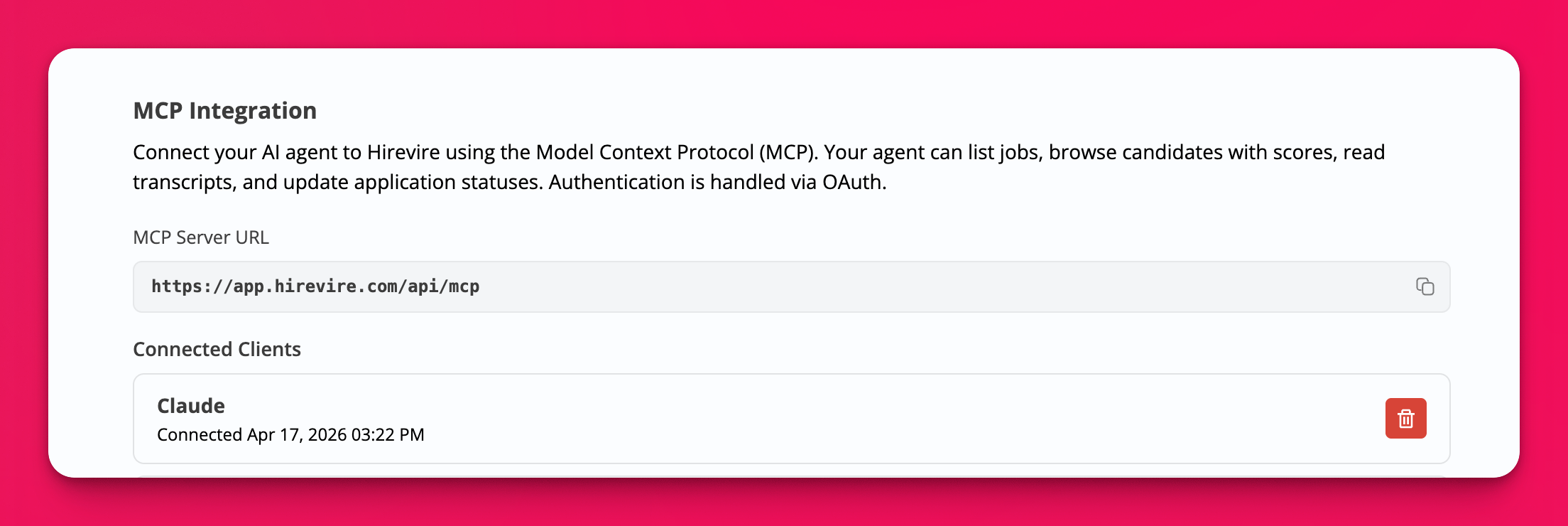
Hirevire exposes an MCP server at https://app.hirevire.com/api/mcp. The connection uses OAuth and respects your existing Hirevire job access. Read-only connections can browse and summarize data; read-and-write connections can create and edit jobs, change job status, and move candidates between stages.
Step 1: Copy your MCP server URL
Go to My Account and open Integrations.
In the MCP Integration section, copy the MCP Server URL.
Step 2: Add the connector to your AI tool
Open your AI tool’s connector or custom integration settings.
Paste the Hirevire MCP server URL into the custom connector field.
Sign in with your Hirevire credentials when prompted.
On the authorize screen, choose the organisation (if you belong to more than one) and the Access level: Read only or Read & write.
Review the permissions, then authorize the connection.
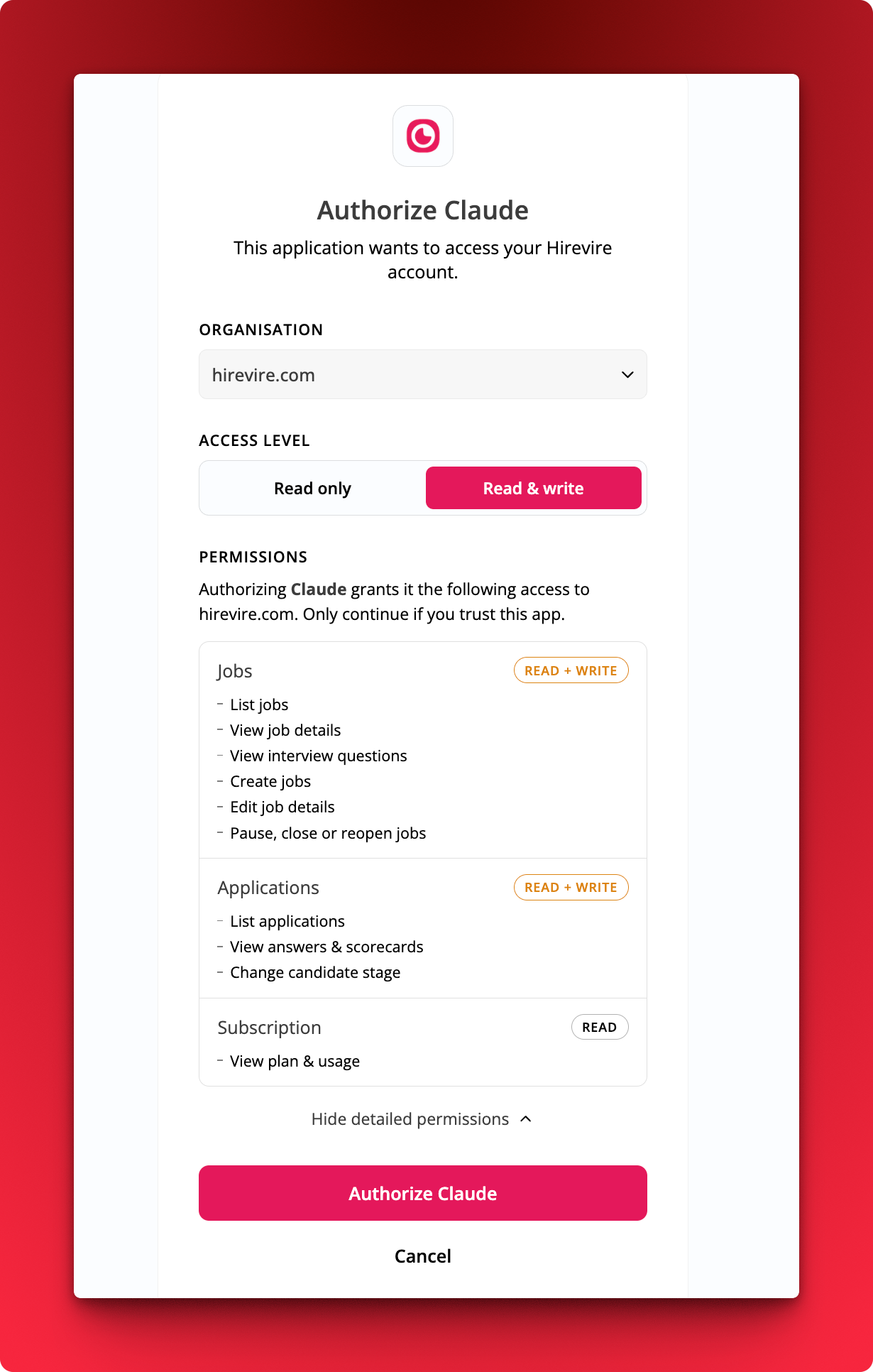
Write tools appear only when you select Read & write. You can expand Show detailed permissions to see each action before you authorize.
Step 3: Ask your AI tool to work with Hirevire data
After connecting, ask your AI tool to perform actions in plain language. For example:
List my active jobs
Show the interview questions for a job
Create a job for a Product Designer role with these questions…
List candidates for a job and include scores
Summarize a candidate’s transcript and scorecard
Move a candidate to Shortlisted (or a custom stage) and optionally send the stage email
Pause or close a job
Check my plan usage and how many active jobs I have left
Revoke access
To disconnect an agent, go to My Account > Integrations, open Connected Clients under MCP Integration, and disconnect the client.