
Use Cmd+K to search jobs, candidates, and commands
Updated 4 months ago
Press Cmd+K on your keyboard (or click the search bar at the top of the dashboard) to open the universal command palette. It lets you jump to any job, candidate, or dashboard action without navigating menus.
Open the command palette
From any page in the Hirevire dashboard, press Cmd+K on Mac or Ctrl+K on Windows.
Alternatively, click the Search... bar in the top-right header.

Search or run a command
The palette is split into two modes: type to search across your account, or select a command to jump to a specific page.
Search across jobs and candidates
Type a job title, candidate name, or keyword to surface matching records instantly.
Run dashboard commands
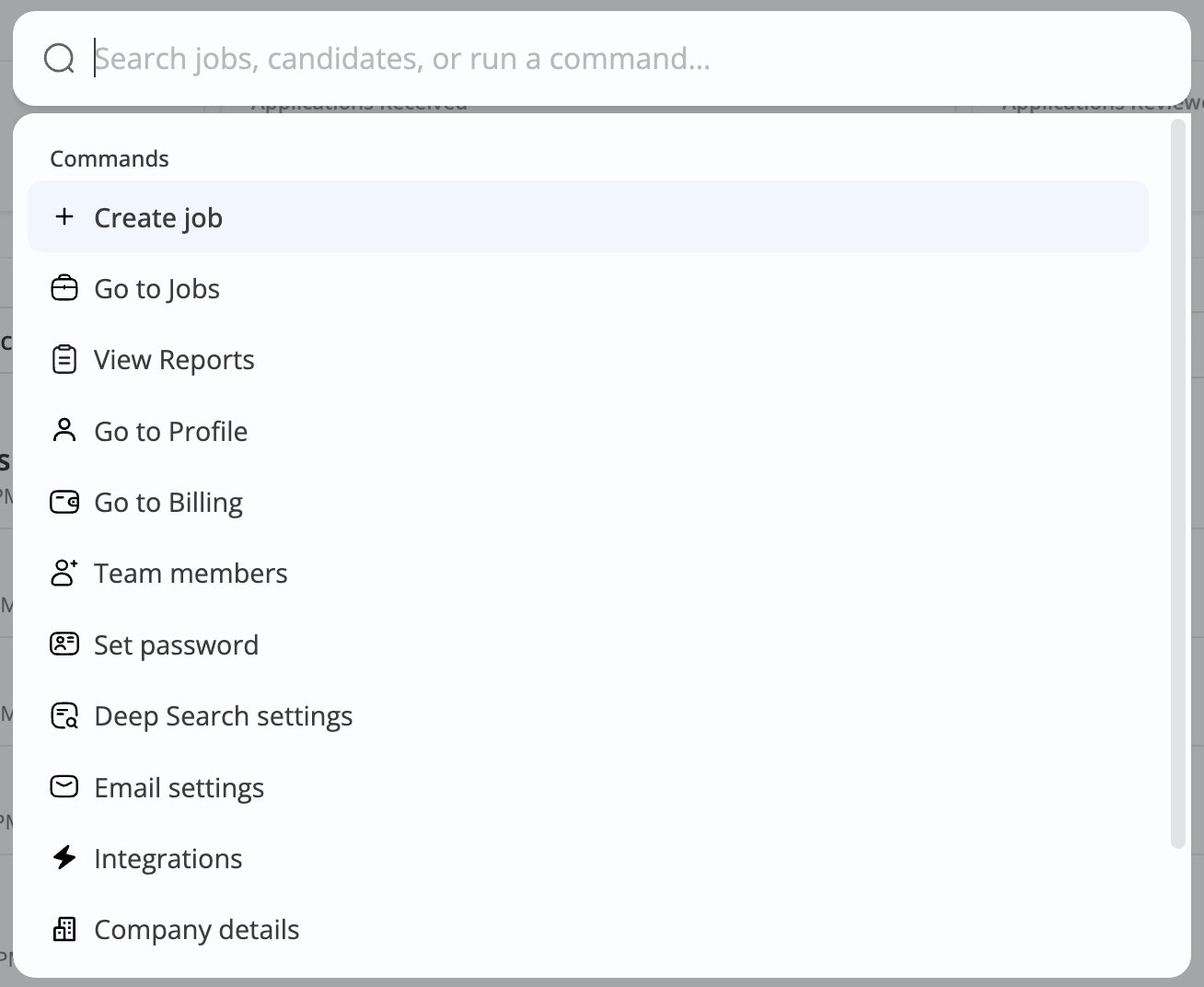
Type a command name or browse the list to navigate directly. Verified commands include:
Create job — start a new job post
Go to Jobs — jump to your jobs list
View Reports — open analytics and reports
Go to Profile — open your user profile
Go to Billing — manage your subscription and invoices
Team members — manage users in your workspace
Set password — update your login password
Deep Search settings — configure AI-powered candidate search
Email settings — adjust notification and SMTP settings
Integrations — connect ATS and automation tools
Company details — edit your organization profile
Use Deep Search from the palette
Deep Search must be enabled separately before you can use it. It is not active by default.
Deep Search lets you find candidates in plain English across video transcripts, resumes, text responses, team notes, and uploaded files. Results show where the match was found and a relevance percentage. It is available only on the Agency plan.
Select Deep Search settings from the command list to enable or manage it. Once enabled, you can search candidates in plain English directly from the dashboard. Learn more about Deep Search.