
Confirm every factor is linked to at least one question, total weightage is exactly 100%, and each factor has a name, indicators, and a complete 1–5 rubric. Common messages: Please associate at least one question with each factor. and Total weightage should not exceed 100.
Set up AI scorecards and candidate scoring
Updated 4 weeks ago
Hirevire scores candidates in two ways: AI Scorecards that generate weighted factors from interview answers and candidate evidence, and must-have / good-to-have criteria for standard questions. You can also turn on Auto-disqualify Applicants so candidates who miss must-have criteria stop before media questions.
Use this guide to pick the right method, set it up, and know when scores appear after you save.
Choose the right scoring method
Pick the method that matches the questions you need to evaluate.
Method | What it evaluates | Where you set it up | What you get |
|---|---|---|---|
AI Scorecards | Interview answers across all question types, plus candidate resume evidence | Job Settings → AI Scorecard | Weighted AI Score out of 5, factor breakdown, and feedback |
Must have / Good to have scoring | Standard questions only (text, number, date, multiple choice, checkboxes, dropdowns, links) | Job editor → Scoring | Must have and Good-to have scores on each application |
Auto-disqualify Applicants | Must-have score during the application flow | Job editor → Scoring | Candidates below the threshold are marked Disqualified and stopped before media questions |
AI Scorecards and standard scoring are separate systems. Auto-disqualify depends on must-have criteria—not on AI Scorecards.
Set up an AI Scorecard
Create a scorecard from the job’s AI Scorecard tab so new interview answers and candidate evidence can be scored automatically.
Open the scorecard builder
Open the job and go to Settings.
Select the AI Scorecard tab.
Choose how to start:
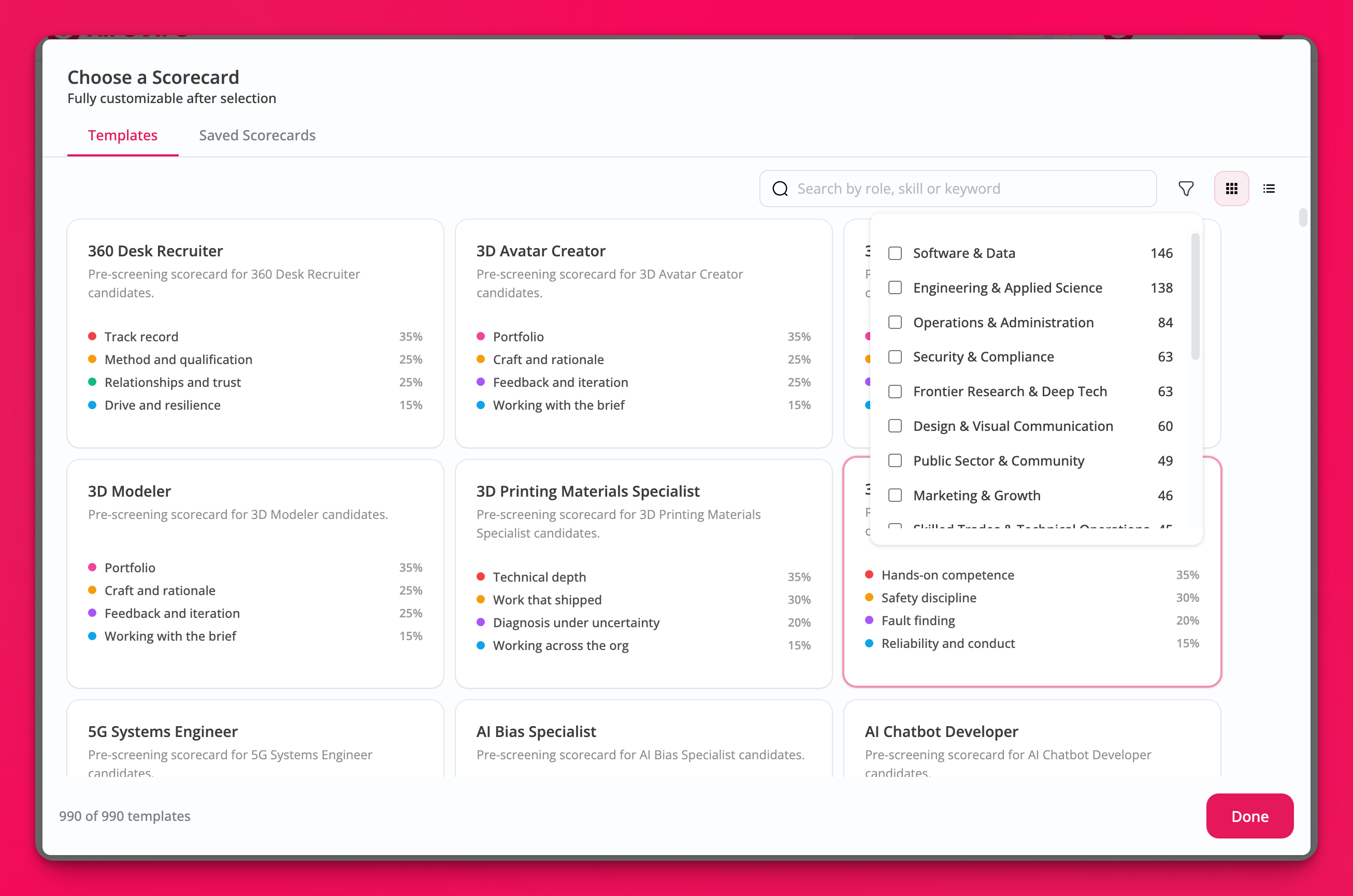
Use a Template — pick a pre-built scorecard, then customize factors
Upload Rubric — upload a text rubric for Hirevire to parse into factors
Generate using AI — create a tailored scorecard from the job and its questions
In the Use a Template picker, the Search by role, skill or keyword field matches template names, tags, and descriptions case-insensitively and shows the number of matching templates. Filter by category accepts multiple categories at once and shows templates matching any selected category, with filter chips, the active filter count, and Clear all and Clear filters controls to reset. Grid view and List view switch the layout, your chosen view is kept for future visits, and the picker shows No templates match your search when nothing matches.
If the job has no questions, the builder is empty until you add one. All active primary question types can be associated with scorecard factors.
Choosing Generate using AI creates a draft with 2–6 assessment factors, each linked to the questions it evaluates. Review the draft and save it to apply it to the job.
Add and edit factors
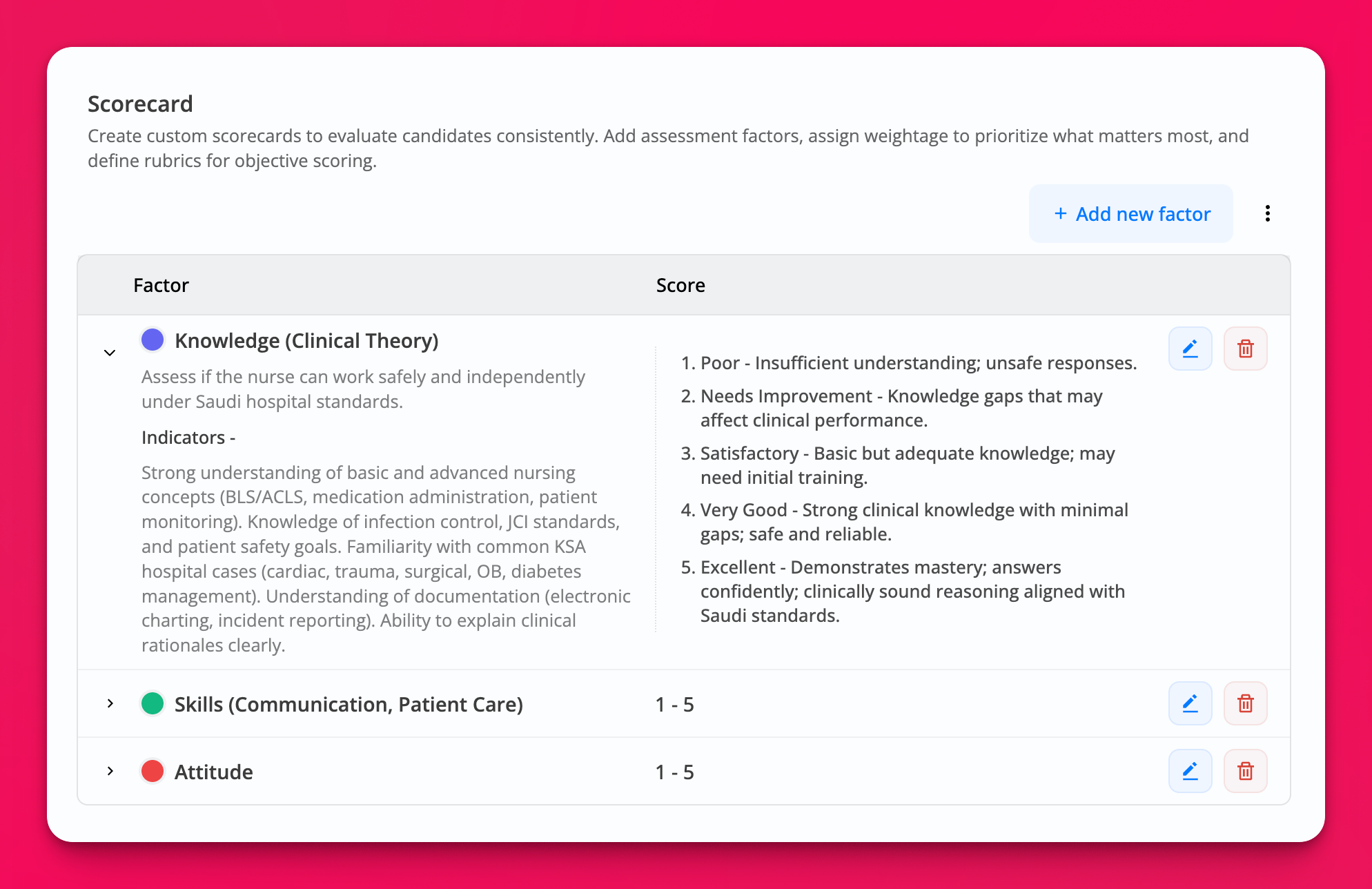
Each factor is one evaluation dimension the AI scores on a 1–5 rubric.
Select Add new factor (or edit an existing factor).
Fill in:
Name of factor
Description / Purpose
Indicators (What to look for)
Scoring Rubric (1-5 Scale) — criteria for scores 5 through 1
Color for the factor badge
Set Factor weightage for final score so all factors total 100%.
You cannot remove the last remaining factor. After a template is applied, use Change Template if you need a different starting point. If you already saved scorecards, you can also open Saved Scorecards from the template picker.
Associate factors with questions
Every factor must be linked to at least one question before you can save. The association table lists the job’s active primary questions across all question types, plus candidate resume evidence.
In the Associate Factors with Questions table, check the factor columns for each question the AI should evaluate.
Map multiple factors to one question, or one factor across several questions, as needed.
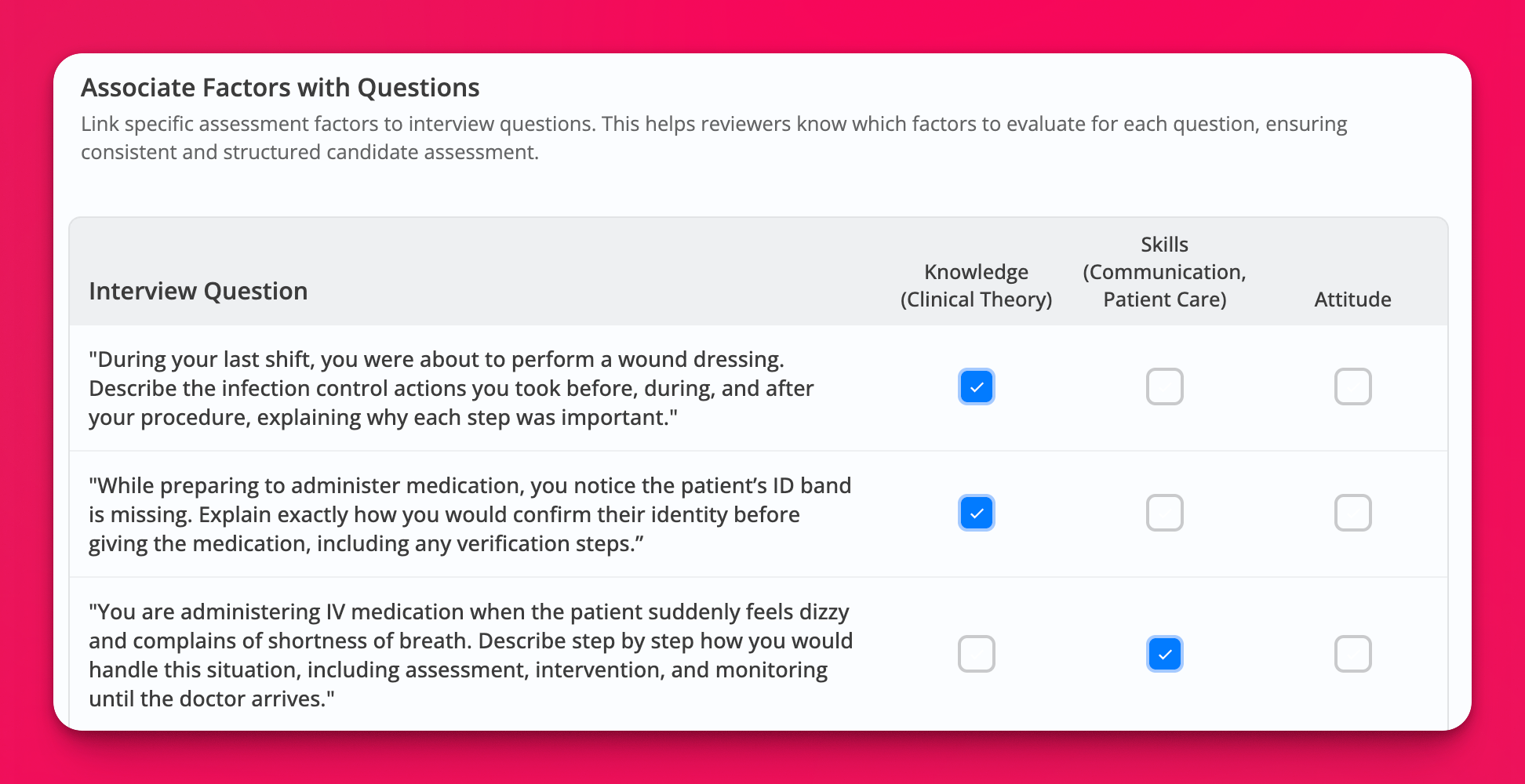
If a factor has no question link, save shows: Please associate at least one question with each factor.
Turn on automatic scoring and save
In Credit Usage, turn on Automatically score applications if you want new applications scored without a manual step.
Optional, on legacy plans only: turn on Set spend limit on credits for this job and enter a credit limit. The Credit Usage panel, including the spend limit, appears only on legacy plans; current plans (Essentials, Professional, Agency) do not show credit controls. When the limit is reached, you are notified and automatic AI reviews pause until the next cycle.
Select Save.
Save succeeds only when the scorecard has at least one factor, every factor is linked to a question, and total weightage is exactly 100%. On success, Hirevire confirms the scorecard was saved.
For weightage-only adjustments after the scorecard exists, see Configure Scorecard Weightage.
Set up must-have and good-to-have scoring
Score standard question answers from the job editor Scoring step.
Enable scoring
Open the job in the job editor (or create a new job).
Add at least one standard question on the questions step if you have not already.
Go to the Scoring step.
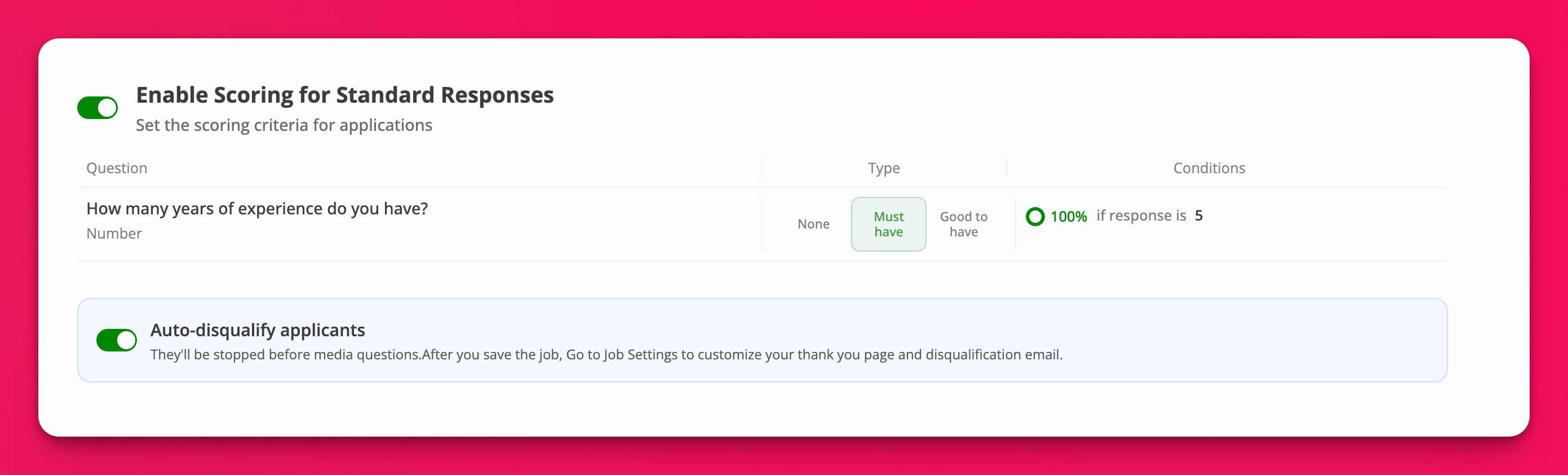
Turn on Enable Scoring for Standard Responses.
If the job has no standard questions, the criteria list shows No standard response questions found. Video, audio, file upload, and screenshare answers are not scored here.
Add criteria to a question
In the scoring table, set the question’s impact to Must have or Good to have (or None to leave it unscored).
Select Add conditions (or Edit if conditions already exist).
Choose an operator and value:
= equals / ≠ doesn't equal
> is more than / >= is at least (more than or equal to)
< is less than / <= is upto (less than or equal to)
<> is between (two values)
∋ contains / ∌ doesn't contain
✓ is set / ✕ is not set
Save the condition.
Must have is pass or fail: the candidate meets the condition (100%) or does not. Use it for dealbreakers such as location, authorization, or required qualifications.
Good to have uses tiered condition scores shown as percentages (25%, 50%, 75%, or 100%). Use it for preferences such as years of experience.
For free-text answers where phrasing varies, prefer a multiple choice question over a contains match so scoring stays consistent.
How contains matching works
The contains operator looks for a literal substring match and is case-insensitive.
The candidate answer must include the exact phrase you enter.
Special characters matter (
Impact and Urgencydoes not matchImpact & Urgency).You can provide multiple values where the condition UI allows multi-select for contains / doesn't contain.
Auto-disqualify applicants
Turn on Auto-disqualify Applicants on the same Scoring step so candidates who miss must-have criteria stop early.
Before you enable it
Auto-disqualify is available only when both are true:
Enable Scoring for Standard Responses is on
At least one standard question is set to Must have
Without a must-have question, Hirevire shows: Add at least one must-have question to enable disqualification.
Turn it on
On the job editor Scoring step, enable standard scoring and add at least one Must have rule.
Turn on Auto-disqualify Applicants.
Save the job.
After save, customize the thank you page and disqualification email in job settings so disqualified candidates get the right message.
During the application flow, Hirevire checks the candidate’s must-have score against the job’s disqualification threshold. Unless a different threshold is configured for the job, that threshold is 100, so candidates need a full must-have score to continue.
If the candidate is below the threshold, Hirevire:
Marks the application Disqualified
Submits the application in that state
Sends the job’s disqualification email
Stops the candidate before media questions
You can still open the Disqualified application later. Auto-disqualification only applies to applications evaluated after you save the job with the setting on.
When scores appear and what changes after save
Scores are generated for applications handled after your configuration is saved—not as a full re-score of past applicants.
AI Scorecards: New applications are scored when a scorecard exists and Automatically score applications is on. Media answers are scored from their transcripts when a transcript is available—turn on AI transcripts for the job so those answers can be scored—and file answers are scored from their extracted text. Changing the scorecard later does not automatically recalculate existing AI scores. To recalculate one application, rerun its AI score as described in Rerun an AI score and save scoring guidelines.
Must have / Good to have: Criteria are evaluated on standard answers during the application flow for applications handled after you save.
Auto-disqualify: Only applications evaluated after you save with the toggle on are stopped early.
AI scorecard runs use AI credits only on legacy plans (One Job, Startup, Growth); current plans (Essentials, Professional, Agency) include AI features in plan pricing. On legacy plans, the scorecard Credit Usage panel shows credits used and credits available, and scoring can fail with Not enough credits when credits run out. See AI Credit Consumption for Candidate Responses and How to Purchase Additional AI Credits.
How AI Scorecards evaluate candidates
AI Scorecards evaluate a candidate's answers by reading the relevant evidence against the rubric you set up for the role. Video and audio answers are scored from their transcripts, screen recordings from their transcripts, and files from their extracted text — not from the video, images, or on-screen visuals, so there is no facial or body language analysis. Each candidate gets a weighted score plus a short explanation tied to each question.
The AI never rejects a candidate on its own; it supports your team's review. We power AI Scorecards with the OpenAI API, and per OpenAI's API terms your data is not used to train their models.
Review candidate scores
Open the job’s applications list or an individual application to read scores.
On the applications list
Application cards can show Must have, Good-to have, and AI score when those values exist.
On the application detail page
Open a candidate to see:
AI Score — overall score out of 5, with expandable factor rows, feedback, and question references
Must-have and good-to-have condition results on the standard answers
Disqualified status when auto-disqualification applied
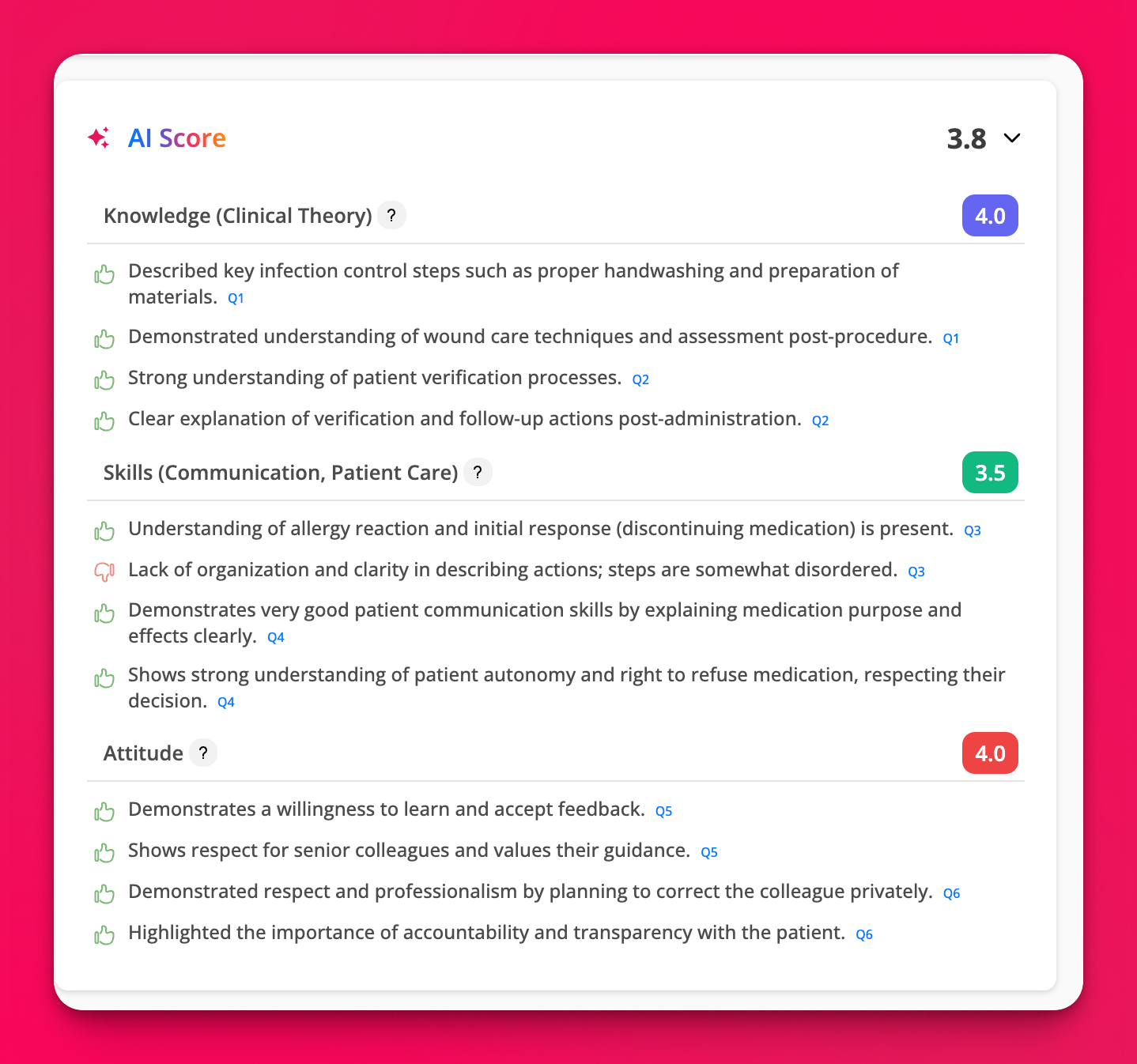
AI Scorecards help prioritize review; they do not replace a hiring decision. For how AI review relates to transcripts and other analysis, see Understanding Hirevire's AI Review Process: Video Analysis and Beyond.
Troubleshooting
I cannot save the AI Scorecard
New applications have no AI Score
Confirm a scorecard is saved for the job, Automatically score applications is on, and, on legacy plans, that the account has available AI credits. Applications submitted before automatic scoring was ready will not backfill on their own.
No standard response questions found on Scoring
Add a text, number, date, multiple choice, checkbox, dropdown, or link question first. Media and file questions do not appear in standard scoring.
I cannot turn on Auto-disqualify Applicants
Enable Enable Scoring for Standard Responses and set at least one standard question to Must have. The toggle lives on the job editor Scoring step, not on the general settings page alone.
A candidate was not disqualified
Check whether the application was submitted before you saved auto-disqualify. Only applications evaluated after save are stopped early. Also confirm their must-have score falls below the job disqualification threshold (100 unless the job is configured differently).
A candidate was stopped before media questions
That is expected when auto-disqualify is on and their must-have score is below the threshold. Review the application in Disqualified status if you still need the record.
Conditions show as invalid or will not save
Each condition needs a selected operator and any required value. Empty or incomplete conditions can show Invalid conditions or field errors such as Please select condition and Please enter value.
A free-text answer looks correct but failed contains matching
Contains matching is a literal substring check. Adjust the match values, or switch the question to multiple choice when there is one definitive correct answer.
Related articles
Was this helpful?
Was this helpful?